How do I view a screen recording with a voice-over from my coach in the Sportsbox 3DGolf app?

How do I view a screen recording with a voice-over from my coach in the Sportsbox 3DGolf app?

How do I view a screen recording with a voice-over from my coach in the Sportsbox 3DGolf app?

View screen recording with VO from coach

  • First, make sure you have accepted the invite from your coach.

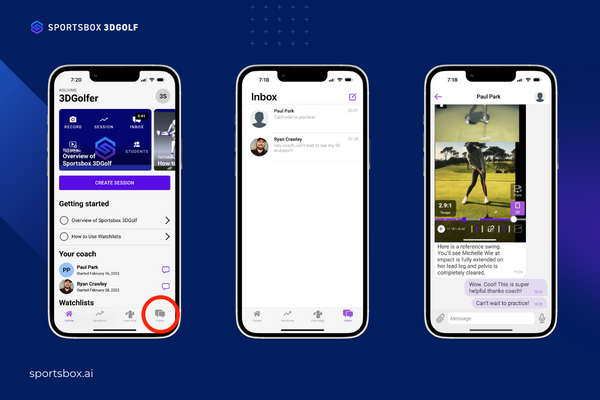
  • To view a screen recording with a voice-over from your coach, go to the “Inbox” tab at the bottom of the home screen.

  • Look for the message from your coach, and you will see the screen recording in the message.

  • Make sure to turn up your volume and make sure your phone is not on silent mode or else you may not be able to hear the voice-over part of the message.

  • You do not need a subscription to listen to a screen recording with a voice-over.

Knowledge Base assets

← Previous article

How do I share or save my screen recording with a voice-over in the Sportsbox 3DGolf app?

Next article →

Does Sportsbox 3DGolf support recording sessions from both Face-On Angle and Down-The-Line?